

Need help with Workia?
We’re here to help.
Getting help in Workia is easy. Find answers, get guidance or contact our team through in-app support, without leaving the platform.
24/7
AI assistance in your language
24/5
Human support, Monday to Friday
Completely free
Help, guidance and suggestions
STEP 1
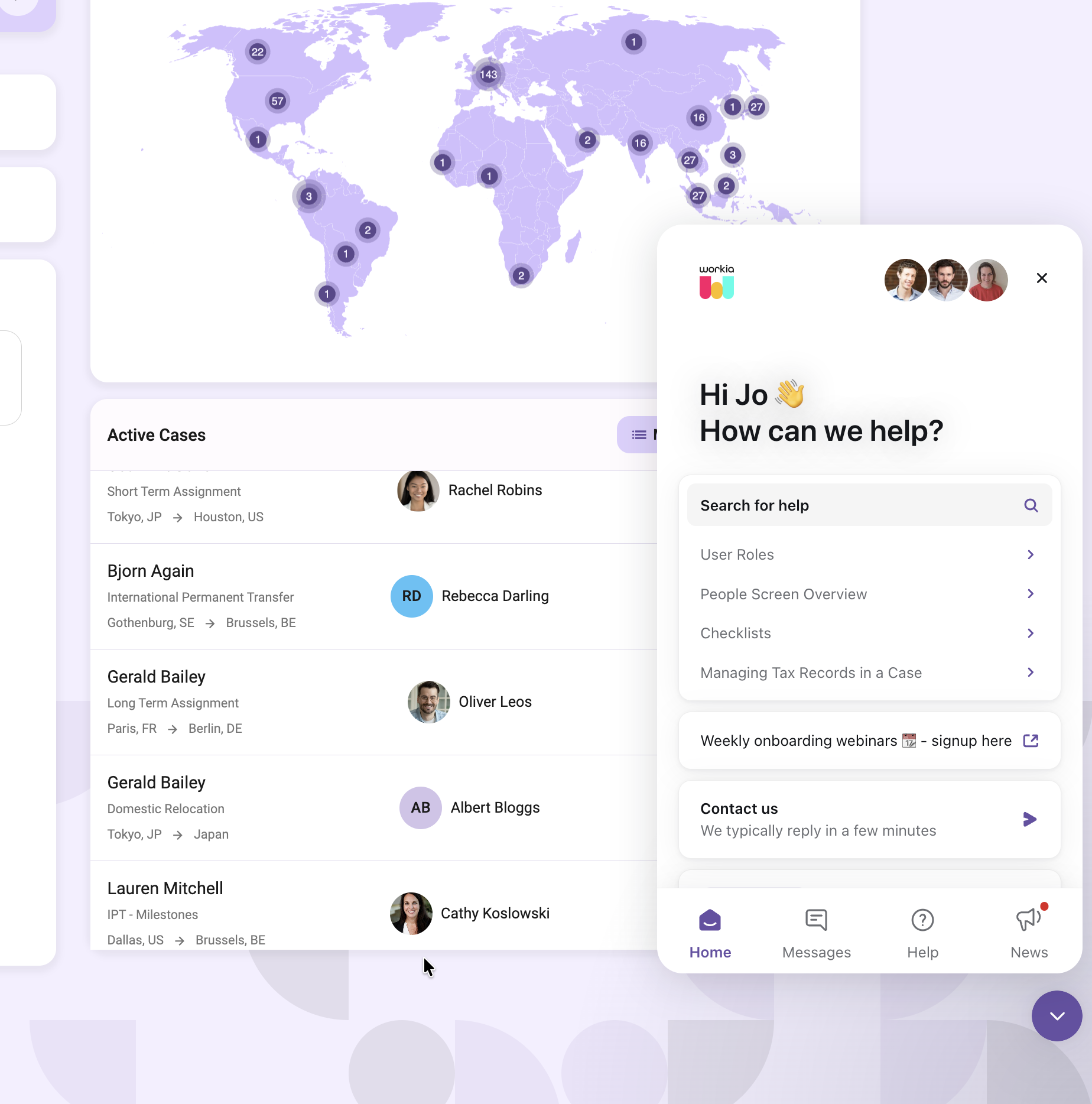
Click the help icon
Click the purple messenger icon in the bottom-right corner of your Workia screen to open the in-app help centre. You can access it at any time while using Workia.

Look for this icon in the bottom-right corner.

STEP 2
Search the Help Centre
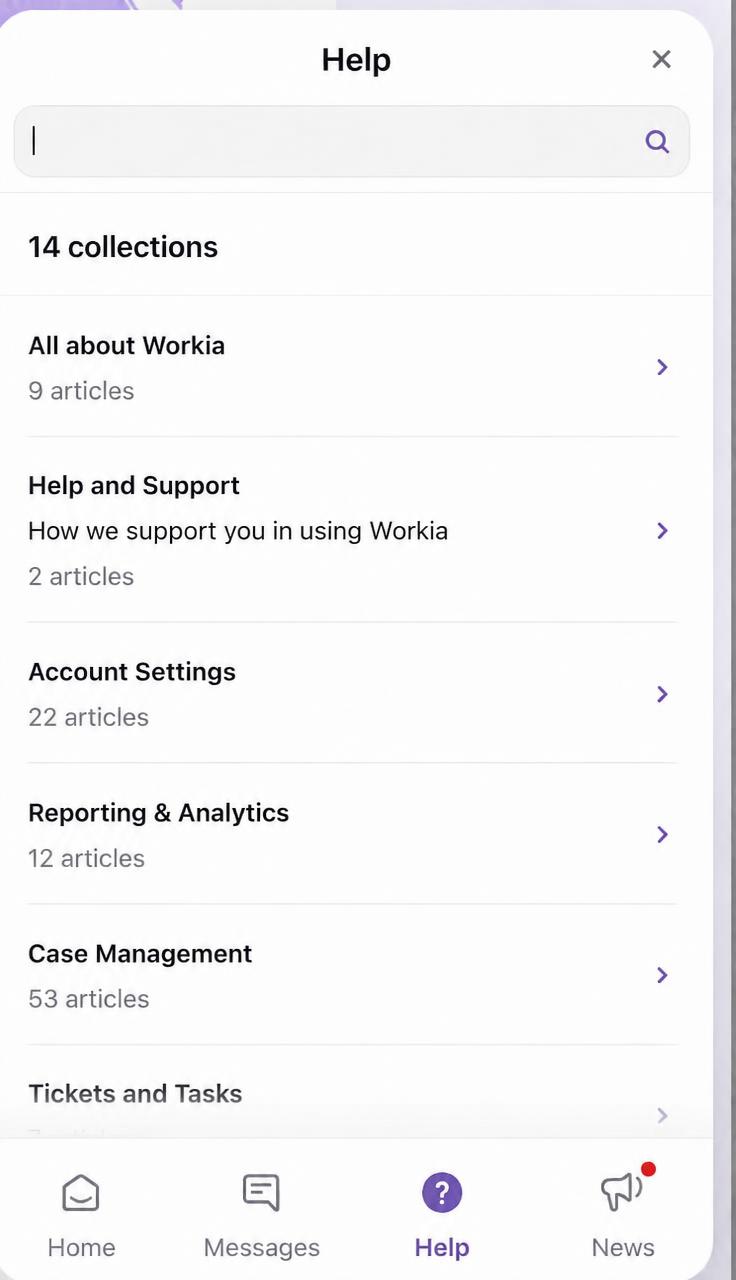
Start by selecting Help from the bottom navigation.
Enter what you’re looking for in the search bar to find relevant articles, or browse collections for step-by-step guides, FAQs and troubleshooting tips.
Articles are pulled from our Help Centre and open right inside the messenger, so you can read the guidance without leaving Workia.
STEP 3
Still need help? Contact us
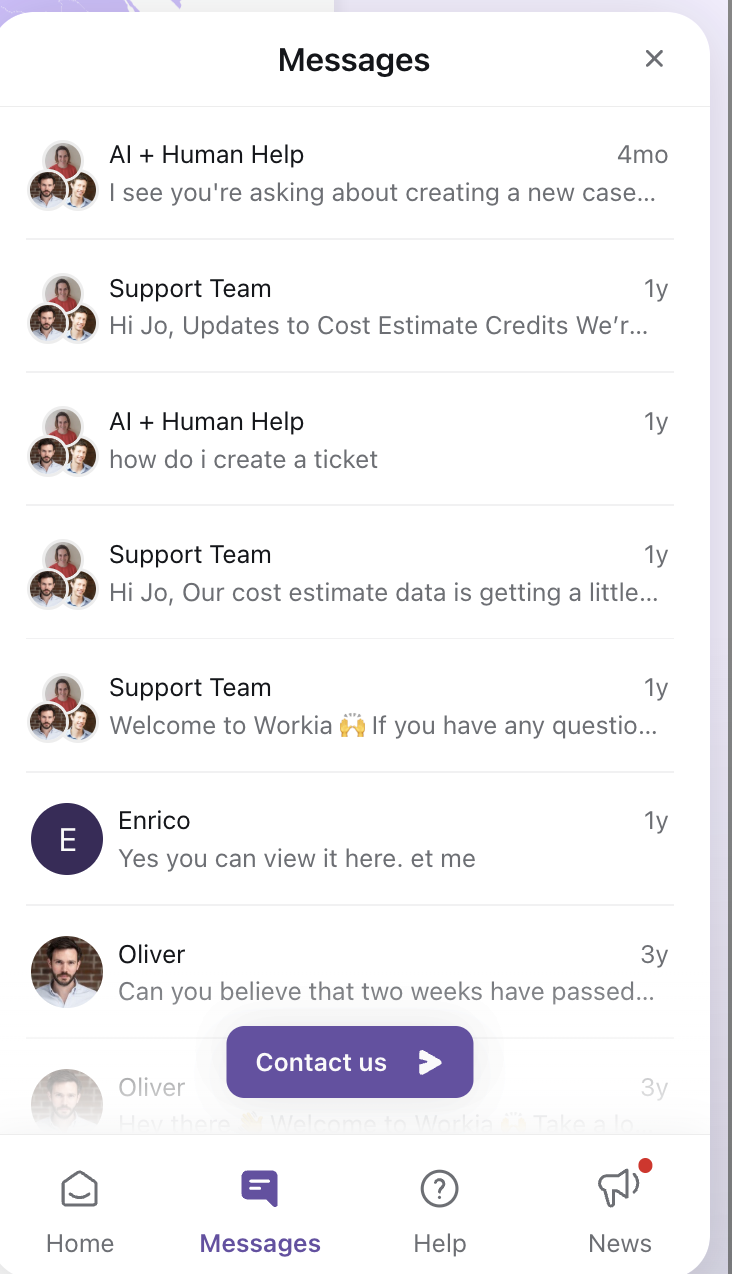
If you can’t find what you’re looking for, click Contact us from either the Home or Messages tab. Messages also lets you see all your past support conversations.
Type your question or describe what you need help with. Our AI assistant replies in your language and can provide an immediate answer.
Need further assistance? Select Speak to a human and a member of our support team will pick up your query and get back to you.
When a human teammate takes over from the AI assistant, they read and reply in their preferred language, while you see their replies in yours.
STEP 4
Raise a ticket or request a feature
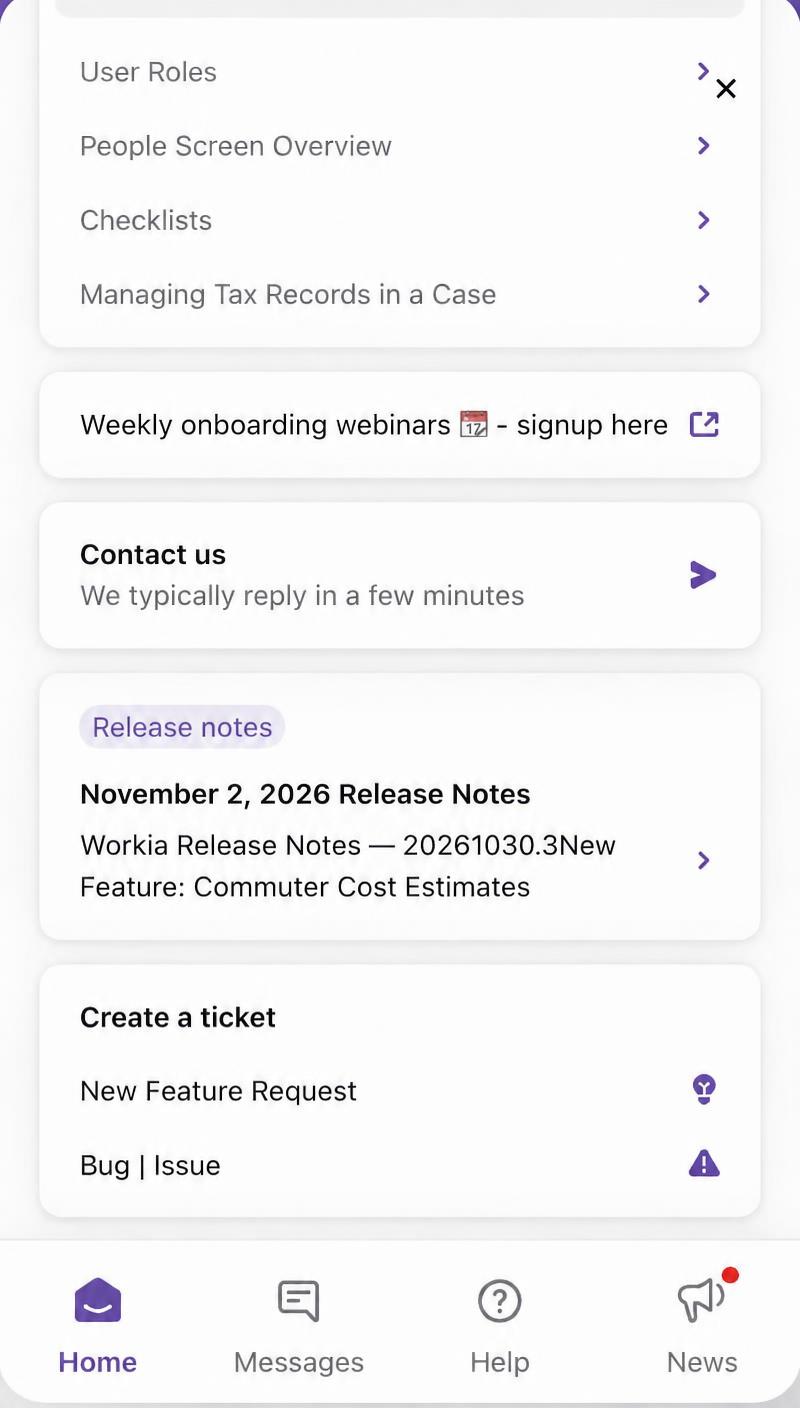
Select Home in the bottom navigation and find Create a ticket. Choose the option that matches your request:
- New Feature Request
- Suggest an improvement or share an idea for something you’d like to see in Workia.
- Bug | Issue
- Report a problem or something that isn’t working as expected. Describe what happened so our team can help.
Select Messages in the bottom navigation to return to your support conversations.
A question, a helping hand or a suggestion?
Get in touch through the messenger whenever you need us. AI assistance is available 24/7, and our support team is here 24/5, Monday to Friday. Support is completely free — we’re always happy to help.